
Step 1: Access the App
Open the app in your web browser
Service Central is a web-based app — no download from the App Store or Google Play is required. Simply open your preferred web browser and go to:
Visit this address in your browser:
fiberspec.app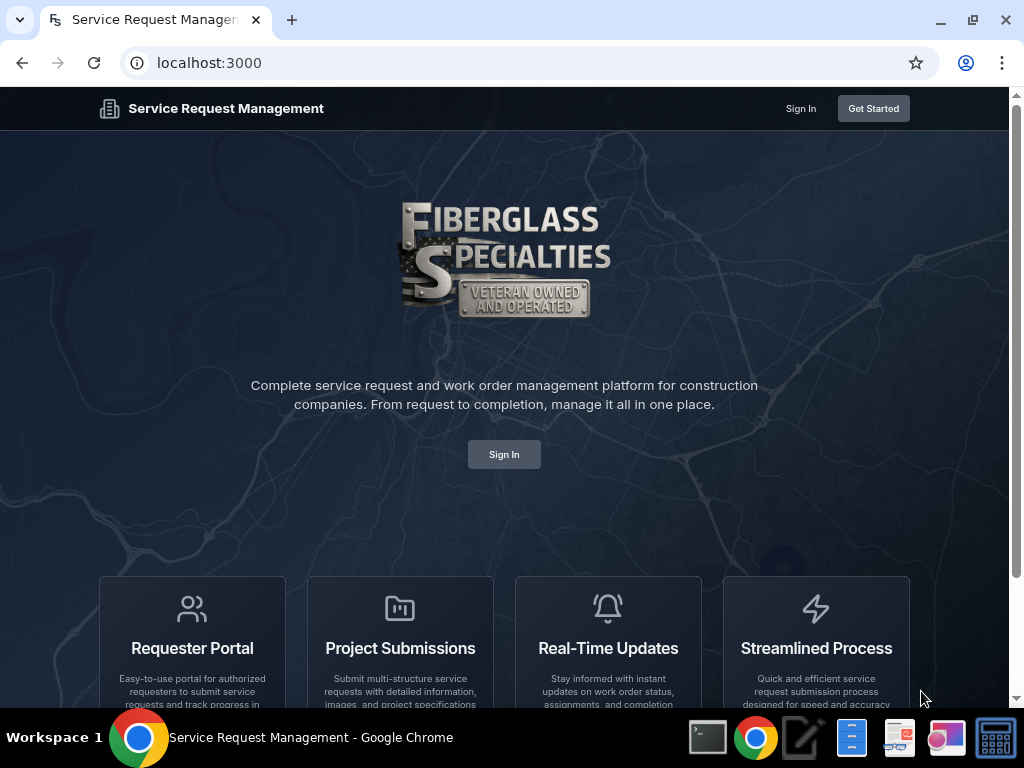
The Service Central home page at fiberspec.app
Works on Any Device
The app works on phones, tablets, and computers. For the best mobile experience, we recommend adding it to your home screen (see Step 2).
Step 2: Add to Your Home Screen
Quick access like a native app
Adding Service Central to your home screen gives you one-tap access — just like a regular app. Follow the instructions below for your device:
iPhone / iPad (Safari)
Open Safari and go to fiberspec.app
This must be done in Safari — it will not work in Chrome or other browsers on iPhone.
Tap the Share button
It's the square icon with an upward arrow at the bottom of the screen (or top on iPad).
Scroll down and tap “Add to Home Screen”
You may need to scroll down in the share menu to find this option.
Tap “Add” in the top right corner
The app icon will now appear on your home screen!
Android (Chrome)
Open Chrome and go to fiberspec.app
Tap the three-dot menu ⋮ in the top right
Tap “Add to Home screen” or “Install app”
The wording may vary by device. Tap “Add” to confirm.
Account Already Set Up?
For users whose accounts were created by our office
You can skip Steps 3 & 4!
If our office has already created your account, you don't need a company code and you don't need to sign up. You should have received an email from our office with your login credentials — including a temporary password.
Didn't receive an email with a username and temporary password? That means you'll need to create your own account — skip this section and continue with Step 3 below.
Here's what to do:
Go to fiberspec.app and tap “Sign In”
Enter the email and temporary password provided in your welcome email
You may be prompted to change your password on your first login — go ahead and set a new password you'll remember
Didn't Get a Password Change Prompt?
No worries — you can change your password at any time. After signing in, tap “Profile” in the top navigation bar, then scroll down to the “Change Password” section. Enter your temporary password as the current password, then set your new one.
How to Change Your Password
Tap “Profile” in the top navigation bar
On mobile, tap the person icon in the header.
Scroll down to the “Change Password” section
Enter your current (temporary) password, then choose a new password and confirm it
Tap “Change Password” to save
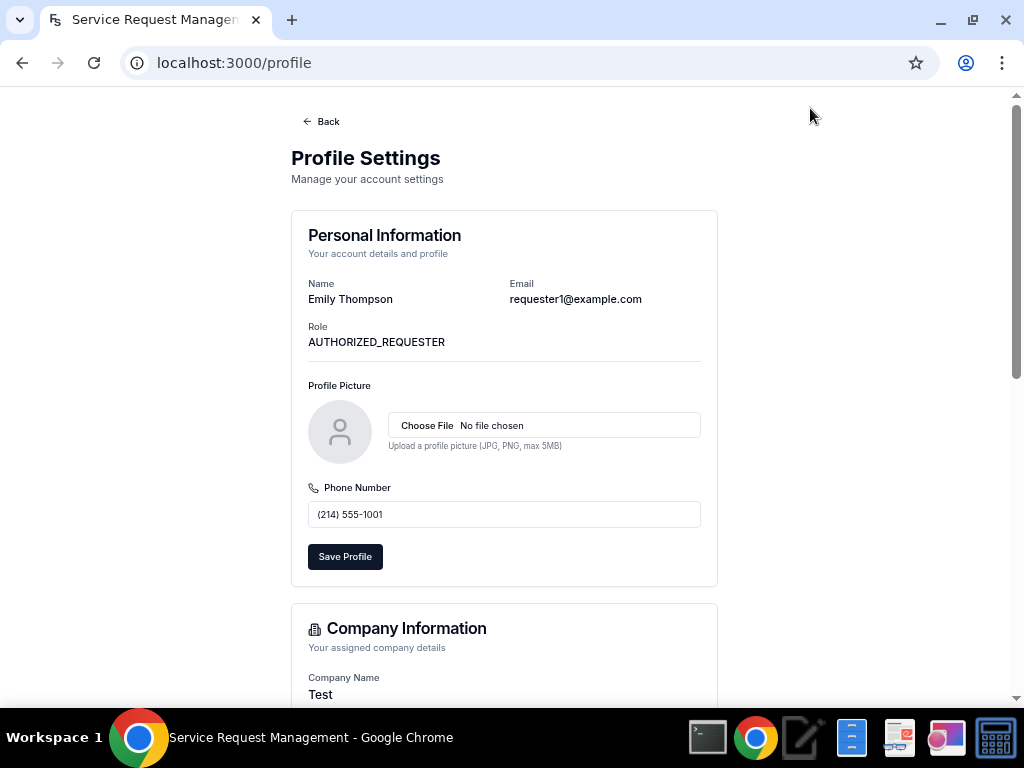
Your Profile page — tap “Profile” in the nav bar
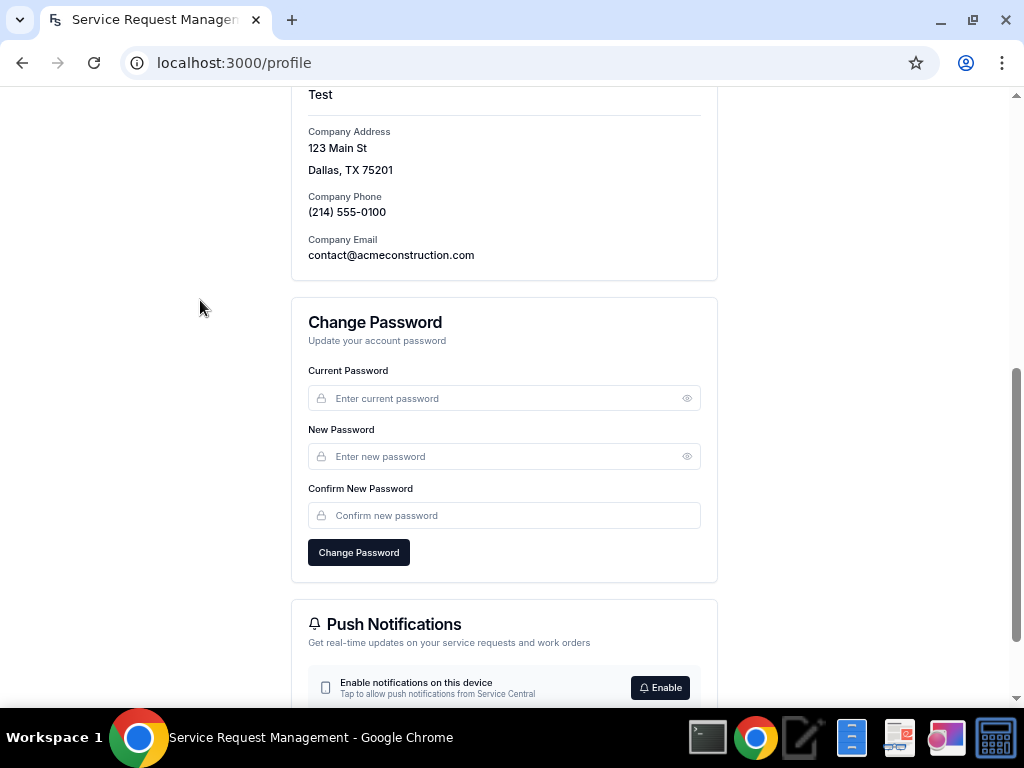
Scroll down to “Change Password”
You're All Set!
Once you've changed your password, you're good to go. Skip ahead to Step 6: Your Dashboard to learn how to navigate the app.
Step 3: Get Your Company Code
You'll need this to create your account
Before you can sign up, you'll need a Company Code that links your account to your company. To get your code, reach out to us:
Keep Your Code Safe
Your company code is unique to your company. Share it only with authorized team members who need to create accounts.
Step 4: Create Your Account
Sign up with your company code
Tap “Get Started” on the home page or “Sign up here” on the sign-in page
Fill in your details:
- First Name & Last Name
- Email address
- Phone number
- Company Code (from Step 3)
- Create a password
Tap “Create Account”
You'll be redirected to sign in with your new credentials.
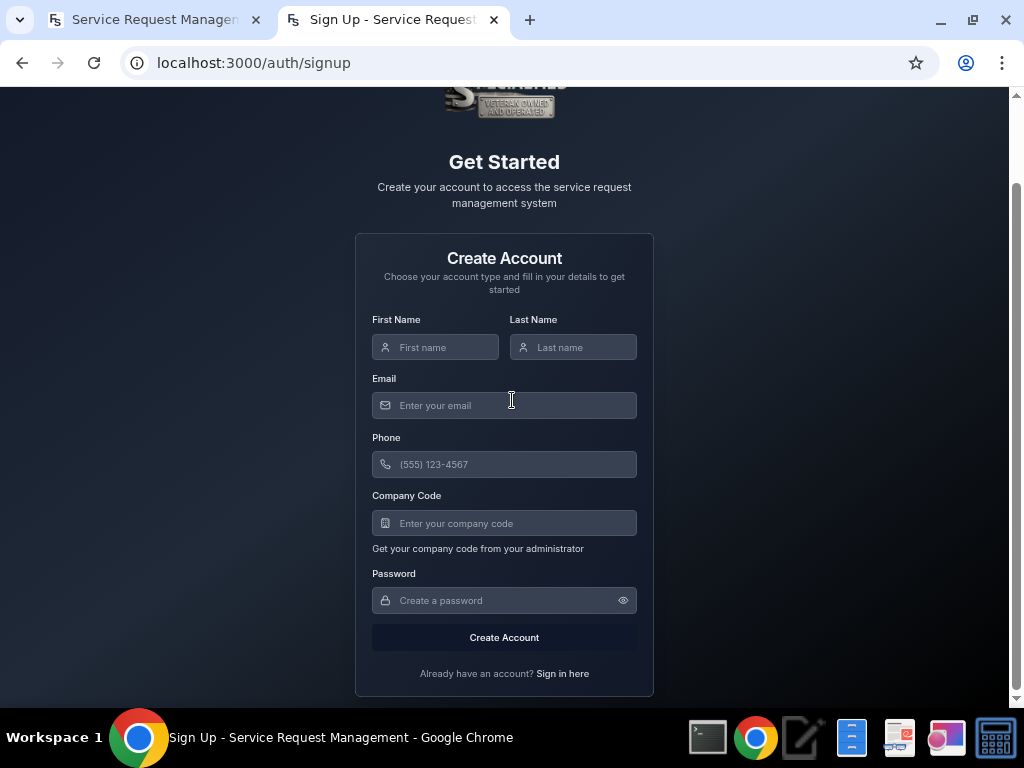
The sign-up form — fill in all fields and tap “Create Account”
Step 5: Sign In
Log into your account
Once your account is created, you can sign in anytime:
Go to fiberspec.app and tap “Sign In”
Enter your email and password, then tap “Sign In”
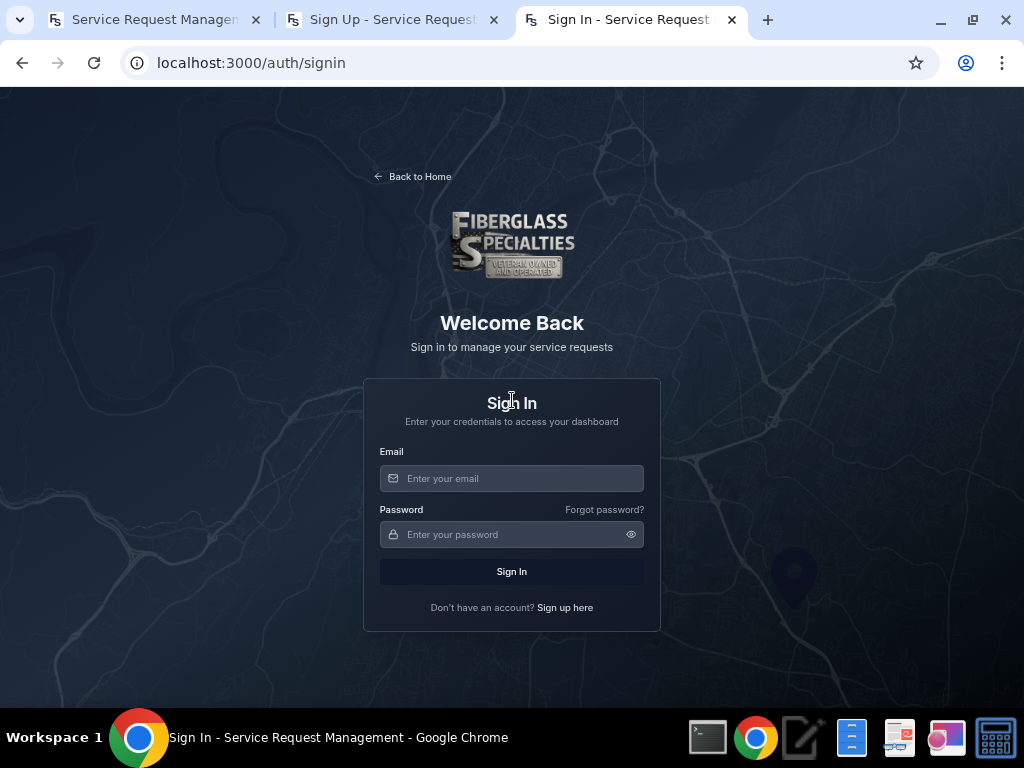
The sign-in page — enter your credentials to access your dashboard
Forgot Your Password?
Tap “Forgot password?” on the sign-in page to receive a password reset link via email.
Step 6: Your Dashboard
Your central hub for everything
After signing in, you'll land on your Dashboard. This is where you can see all your service requests and work orders at a glance.
Service Requests
View all submitted service requests along with their current status (Pending, Converted, etc.).
Work Orders
Once a service request is approved, it becomes a Work Order. Track scheduling, assignments, and completion here.
Search & Filter
Use the search bar and filters to quickly find specific requests by address, status, PO number, or requester.
View Details
Tap “View Details” on any request or work order to see full information including pictures, notes, and status updates.
Real-Time Updates
Your dashboard updates in real time. When a work order is scheduled, completed, or updated, you'll see it reflected here right away.
Step 7: Submit a Service Request
Request fiberglass repair services
To submit a new service request, tap the “New Service Request” button on your dashboard. You'll need to provide the following information:
Service Address
Enter the address where the repair is needed. The address will auto-suggest as you type.
Unit / Lot Details
Add any lot, suite, or apartment number to identify the exact unit.
Room Details & Description
Select the room type (tub, shower, etc.), material, and describe the issue. You can add multiple rooms if needed.
Photos
Upload photos of the damage or area that needs repair. Clear photos help us provide faster, more accurate service.
Once submitted, your request will appear on your dashboard with a “Pending” status. Our team will review it and convert it into a work order.
Step 8: Profile & Feedback
Manage your account and share your thoughts
Your Profile
Tap “Profile” in the top navigation bar to access your account settings. From here you can:
- Upload or change your profile picture
- View your account information
- Change your password
Submit Feedback
We value your input! On your Profile page, you'll find a “Send Feedback” section where you can:
- Report any issues you encounter
- Suggest new features or improvements
- Share general comments about your experience
Need Help?
If you have questions or run into any issues, don't hesitate to reach out. We're here to help!